What is Claude Cowork
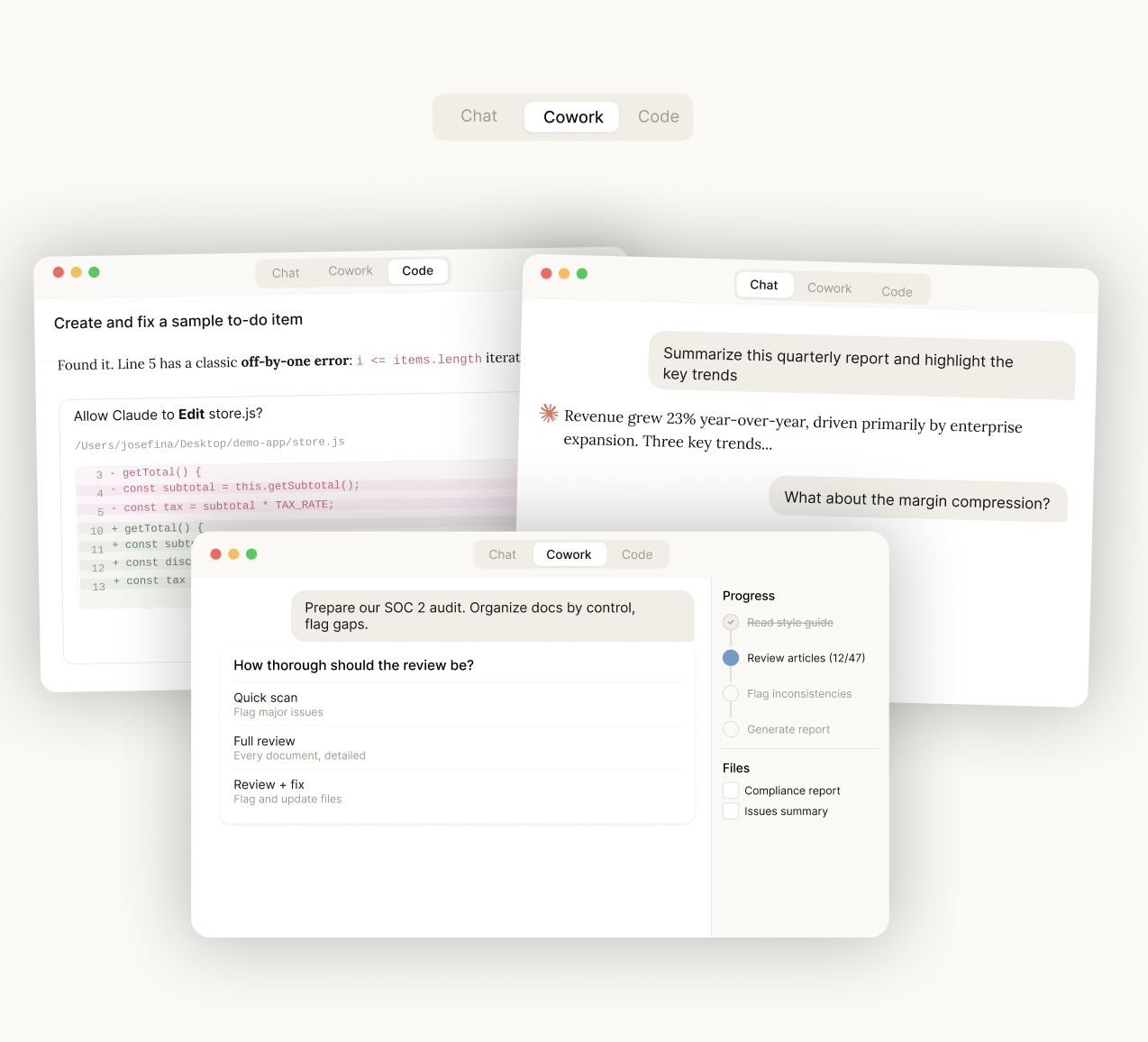
Claude Cowork is an AI assistant that works directly with the files on your computer. Built into the Claude Desktop app, it can read your documents, organize your folders, build spreadsheets, create presentations, and automate repetitive tasks — all on its own.
Unlike regular Claude chat where you ask questions and get text answers, Cowork is an agent that actually does the work. Hand it a folder of receipts and it creates an expense report in Excel with working formulas. Point it at messy data and it cleans, organizes, and outputs a polished spreadsheet. Ask it to create a slide deck and it delivers a .pptx file ready to present.
It's designed for everyone, not just developers. If you've ever wished you had a smart assistant who could handle your tedious computer work, that's exactly what Cowork is.
If you're a developer looking for the coding-focused version, check out Claude Code instead.
How Does It Work
Here's the basic flow, in simple terms:
- You open the Cowork tab in the Claude Desktop app
- You point it at a folder on your computer (like your Downloads, a project folder, or your Documents)
- You tell it what you want in plain English — "Create a summary spreadsheet from these invoices" or "Organize this folder by date"
- Claude plans the work, breaks it into steps, and gets to work — reading your files, running scripts, creating documents, and iterating on results
- You get finished files (
.xlsx,.pptx,.docx,.pdf) saved right to your folder
The key difference from regular chatting with Claude: Cowork runs to completion. It doesn't just give you instructions — it does the actual work and delivers the finished output.
Is It Safe?
Yes. Cowork runs inside a sandboxed virtual machine on your computer. Think of it as a secure, isolated workspace. Even if something goes wrong, your main system stays completely untouched. The sandbox comes with common tools pre-installed (Python, Node.js, etc.) so Claude can run scripts and process data without affecting anything on your computer.
How to Get Started
Step 1 — Download the Claude Desktop App
Go to claude.ai/download and download the app for your computer:
- Mac — Works on both Apple Silicon (M1/M2/M3/M4) and Intel Macs
- Windows — Works on 64-bit Windows 10 and later (ARM Windows is not yet supported)
Install it like you would any other app — open the downloaded file and follow the prompts.
Step 2 — Sign Up for a Paid Plan
Cowork requires a paid Claude subscription. The free plan doesn't include it. Here's what's available:
| Plan | Monthly Price | Who It's For |
|---|---|---|
| Pro | $20 | Individuals getting started — good for occasional use |
| Max 5x | $100 | Regular users who rely on Cowork daily |
| Max 20x | $200 | Power users who run Cowork heavily all day |
| Teams | $150/person | Teams that want shared access and admin controls |
| Enterprise | Custom | Large organizations with compliance needs |
Important: Cowork uses significantly more AI processing than regular Claude chat. If you're on the Pro plan, you'll hit your usage limits faster than with normal chatting. If you plan to use Cowork regularly, the Max plan is worth it.
Step 3 — Open the Cowork Tab
Once the app is installed and you're logged in:
- Open the Claude Desktop app
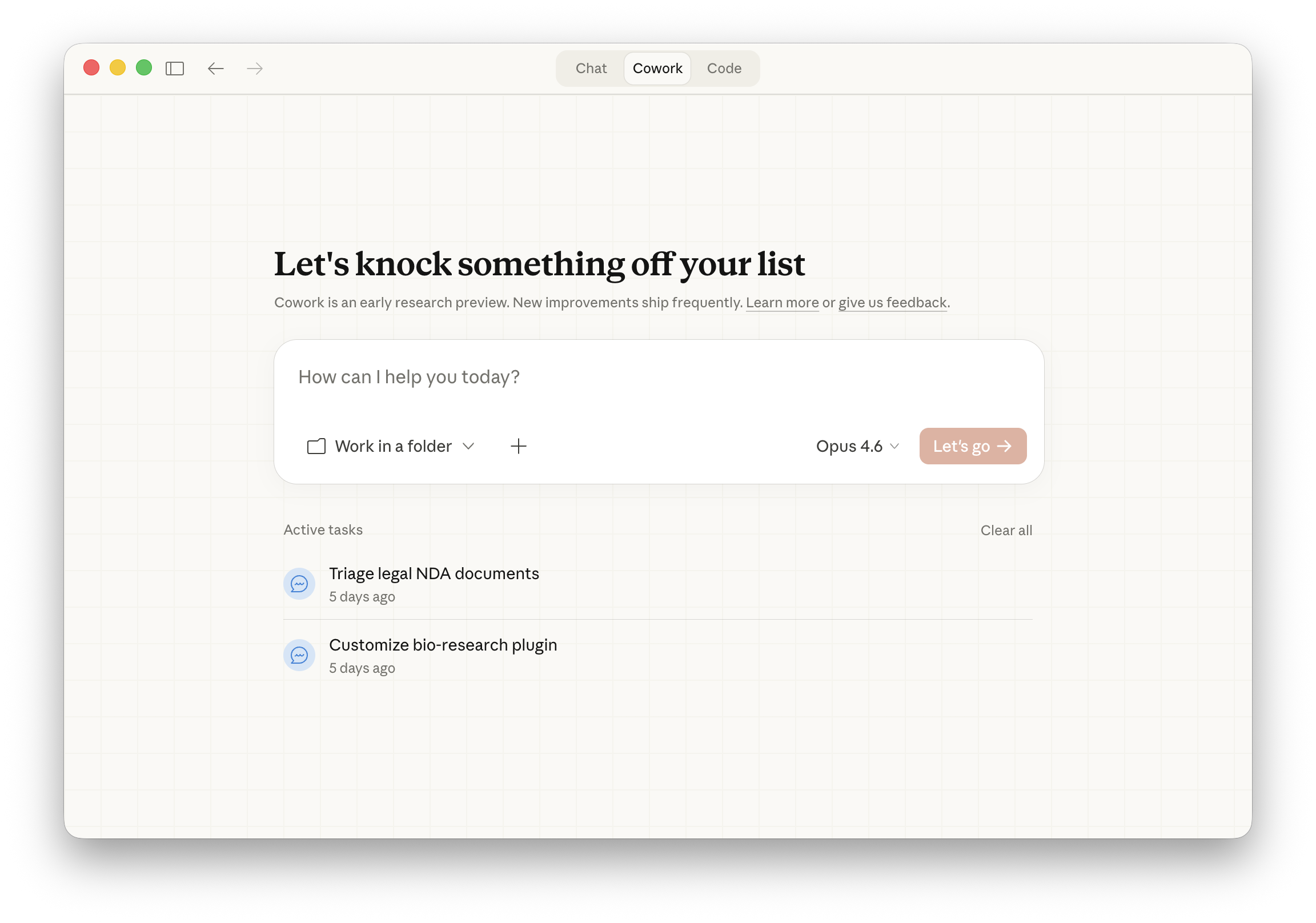
- Click the "Cowork" tab at the top of the app (next to "Chat" and "Code")
- Grant folder access — Claude will ask which folder on your computer it should work with
- Type your task and hit enter
That's it — Claude will start planning and working. You'll see it thinking through the steps, and it'll check in with you if it needs any decisions made.
What Can You Do With Cowork
Organize Files and Folders
Got a messy Downloads folder? Point Cowork at it and say "organize these by file type and date." It can:
- Sort hundreds of files into categorized folders
- Rename files with consistent patterns (like
2026-03-15-invoice.pdf) - Find and remove duplicates
- Clean up old or unused files
Create Spreadsheets
This is one of Cowork's strongest skills. Ask it to:
- Build Excel spreadsheets with working formulas (VLOOKUP, SUM, IF statements)
- Create multi-tab workbooks with conditional formatting
- Generate expense reports from receipt images
- Turn raw data into organized, analysis-ready spreadsheets
Create Presentations
Need a slide deck for a meeting? Describe what you need and Cowork delivers a .pptx file:
- Creates slides with proper layouts and headings
- Structures content logically across slides
- Outputs a file you can open directly in PowerPoint or Google Slides
Process and Analyze Data
- Extract structured data from PDFs and documents
- Clean messy datasets (remove duplicates, fix formatting)
- Run analysis — identify trends, outliers, patterns
- Combine information from multiple files into a single report
Research and Write Reports
- Synthesize information from dozens of documents
- Combine web searches with your local files
- Create coherent, well-structured reports and summaries
Automate Recurring Tasks
Set up tasks that run on a schedule using the /schedule command:
- Morning briefings — summarize new emails or updates
- Weekly reports — compile data into a spreadsheet every Friday
- Invoice processing — organize incoming invoices daily
- Price tracking — check and record prices at regular intervals
You can set tasks to run hourly, daily, weekly, or on weekdays only. Your computer needs to be on and the Claude app open for scheduled tasks to run. If a task is missed, it automatically runs when you open the app again.
Connecting to Other Apps
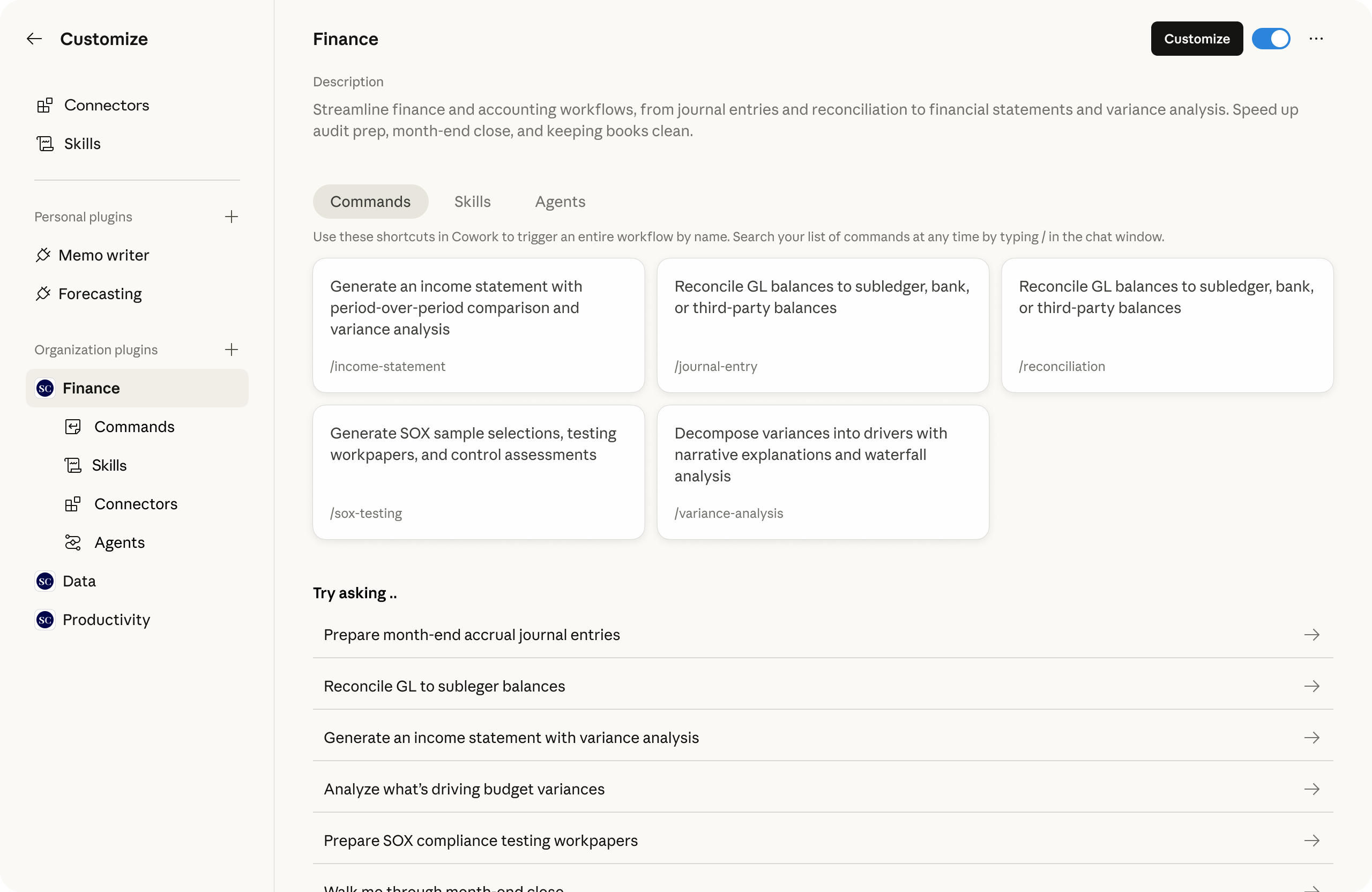
Cowork can connect to your other tools through plugins and integrations. The Connectors Directory has 50+ options including:
- Communication: Slack, Gmail, Microsoft 365
- Productivity: Google Drive, Google Calendar, Notion, Box
- Project Management: Asana, Linear, Jira, Monday.com
- Design: Figma, Canva
- Engineering & Data: GitHub, Hex, Amplitude
- Finance: Stripe, FactSet
Some of these integrations are interactive — meaning they show live interfaces right inside Claude. For example, you can draft a Slack message, preview it, and send it without ever leaving the Claude app. Same with Figma designs and Canva projects.
Cowork vs Regular Claude Chat
If you've used Claude for chatting, here's how Cowork is different:
| Regular Claude Chat | Claude Cowork | |
|---|---|---|
| What it does | Answers questions, writes text | Actually does the work on your computer |
| File access | Only sees files you upload or paste | Reads and writes files directly in your folders |
| What you get | Text responses in the chat window | Finished files (Excel, PowerPoint, PDF, etc.) |
| How it works | You guide every step | Runs autonomously, checks in when needed |
| How long it takes | Quick back-and-forth | Can work through 50+ documents over extended periods |
| Scheduling | Not available | Can run tasks on a recurring schedule |
| AI usage | Standard | Uses significantly more (plan accordingly) |
In short: Chat is for conversations. Cowork is for getting things done.
For Teams and Enterprise
If you're setting up Cowork for a team or organization, there are additional features:
- Private plugin marketplaces — admins can build and distribute custom plugins for their organization
- Partner-built plugins — pre-built integrations for enterprise tools
- Admin controls — track plugin usage, set up approval workflows, and enforce policies
- Custom integrations — connect to your own internal tools and APIs
Learn more in the Cowork for Teams guide.
Tips for Getting the Most Out of Cowork
- Be specific about what you want. "Create an expense report from the receipts in my Downloads folder, grouped by month, with a total row" works much better than "organize my receipts."
- Start with small tasks to get a feel for what Cowork can do. Then work up to bigger projects.
- Check the output. Cowork is very capable, but always review what it produces before sharing.
- Use scheduled tasks for anything recurring. Set it once and forget it.
- Try the plugins. Connecting Slack, Google Drive, or other tools unlocks powerful cross-app workflows.
Related Reading
If you're a developer, Claude Code is the coding-focused counterpart to Cowork — it lives in your terminal or code editor and can build features, fix bugs, write tests, and manage git workflows.
Resources
- Introducing Cowork — The official announcement from Anthropic
- Cowork Product Page — Feature overview and demos
- Get Started with Cowork — Official step-by-step setup guide
- Navigating the Claude Desktop App — Tutorial covering Chat, Cowork, and Code tabs
- Schedule Recurring Tasks — How to set up automated tasks
- Use Plugins in Cowork — Connect to Slack, Google Drive, Figma, and more
- Cowork for Teams and Enterprise — Team setup and admin guide
- Cowork Plugins for Enterprise — Enterprise plugin marketplace
- Connectors Directory — Browse all available integrations
- Download Claude Desktop — Get the app
- Claude Pricing — Plan details and pricing
- Anthropic Blog — Latest news and announcements